Understanding the Controls
Mode 2: The Standard Layout
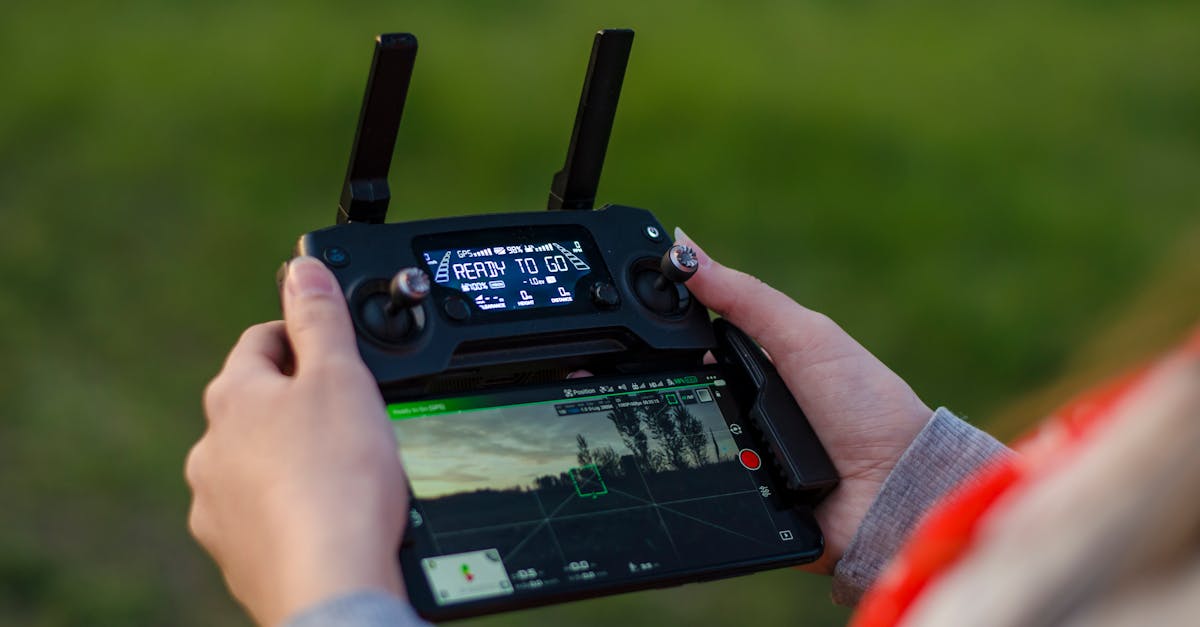
Almost all consumer drones use Mode 2 controller layout. This is the default and the one you should learn first. It uses two joysticks, each controlling different axes of movement:
Left Stick
- Up/Down = Throttle — Push up to climb, pull down to descend. On GPS drones, the stick sets a target altitude and the drone holds it when you let go. On non-GPS drones, you have to actively hold the stick position to maintain altitude.
- Left/Right = Yaw — Rotates the drone on its vertical axis (like turning your head left or right). The camera faces a new direction, but the drone does not move sideways.
Right Stick
- Up/Down = Pitch — Tilts the drone forward (push up) or backward (pull down), causing it to fly in that direction. The more you push, the faster it moves.
- Left/Right = Roll — Tilts the drone sideways left or right, causing it to strafe in that direction.
Left stick controls where the drone points and how high it is. Right stick controls where the drone goes. That is the simplest way to remember it.
Gimbal Wheel
On the upper left of the controller, a small dial or wheel tilts the camera up and down independently of the drone’s movement. This lets you look straight down while flying forward, or pan up from the ground to the horizon.
Function Buttons
Every controller has different buttons, but common ones include:
- Return-to-home (RTH) — Press this and the drone climbs to the RTH altitude, flies back to its takeoff point, and lands automatically.
- Photo/Video toggle — Switches between taking still photos and recording video.
- Pause — Stops the drone mid-flight and hovers in place. Useful if you get disoriented or need to think.
Beginner Mode and Tripod Mode
Most camera drones offer flight modes that limit speed and responsiveness for new pilots:
Beginner Mode restricts the drone to a small area (usually about 30 meters / 98 feet radius) and caps altitude and speed. Controls feel less sensitive. This is where you should start. Keep it on for your first five to ten flights.
Tripod Mode (sometimes called Cinematic Mode) slows the drone’s maximum speed and smooths out stick inputs. It is designed for filming smooth video but is also excellent for precise, controlled flying while you build confidence.
Sport Mode unlocks maximum speed and responsiveness. It is fun but unforgiving. Do not use it until you are comfortable in the standard flight mode.
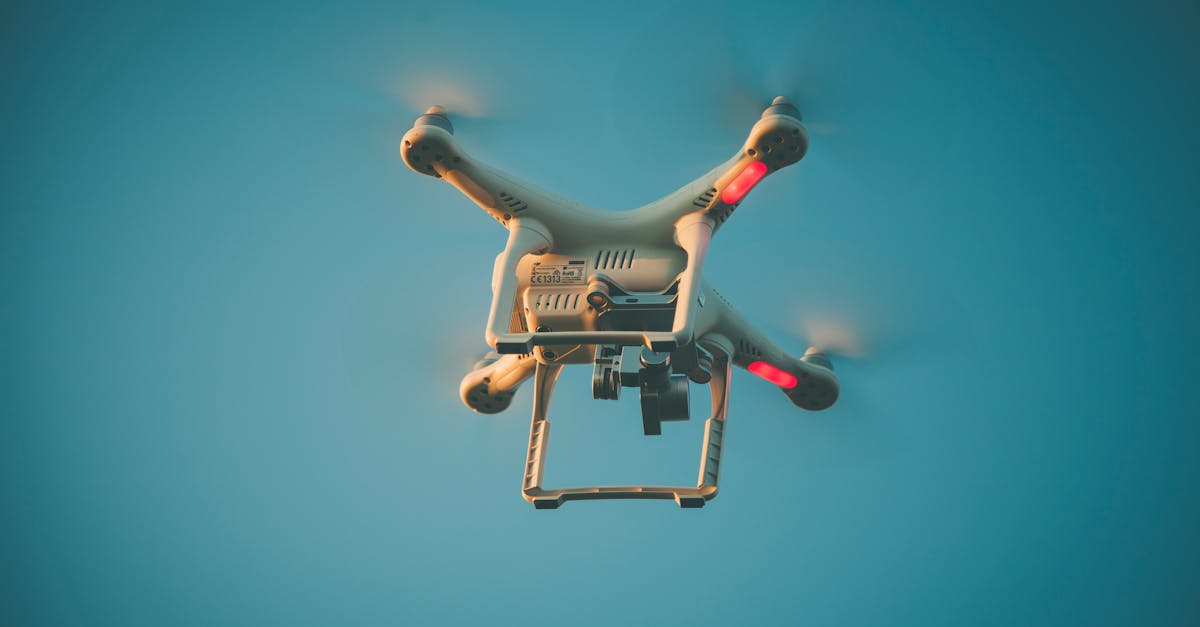
This confuses every beginner. When the drone’s camera is facing you (the back of the drone points toward you), left and right on the right stick appear reversed. If you push right, the drone moves left from your perspective. To avoid confusion, always yaw the drone so the camera faces away from you before making directional inputs.
How to Hold the Controller
Grip the controller with both hands. Use your thumbs on top of the sticks (the most common method) or pinch the sticks between thumb and forefinger for more precise control. Keep your elbows relaxed. Avoid tense, tight grips because they translate to jerky stick movements.
The smoother and gentler your stick inputs, the smoother your footage and the more controlled your flight. Small, deliberate movements beat fast, large ones.
Quick Check
Q: What does the left stick control on a Mode 2 controller? A: Throttle (up/down for altitude) and yaw (left/right for rotation).
Q: What does the right stick control? A: Pitch (forward/backward movement) and roll (sideways movement).
Q: What happens to the controls when the drone is facing you? A: Left and right on the right stick appear reversed from your perspective. Always yaw the drone so the camera faces away from you before making directional moves.
What’s Next?
You know the controls in theory. Let’s get in the air.
For hands-on video demonstrations of each control movement, Pilot Institute’s beginner courses show every stick input in real flight footage.