Drone Video Editing for Beginners: Start to Finish Workflow
Raw drone footage to polished video. Here's the complete beginner workflow covering software, organization, editing, color, and export.
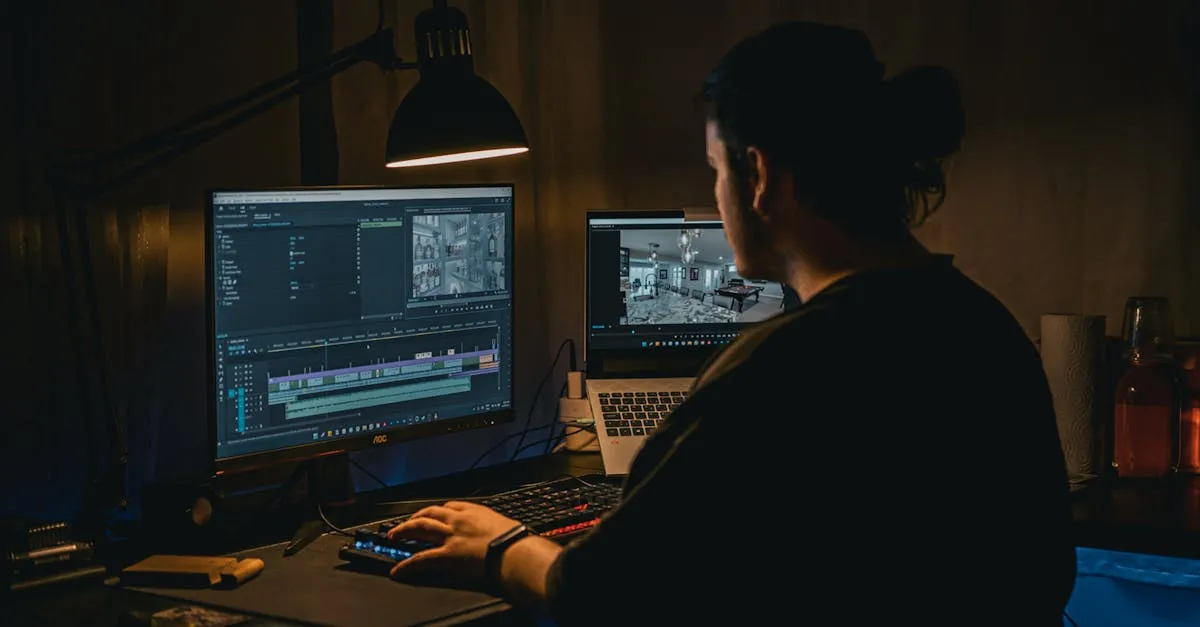
This article outlines a complete workflow for transforming raw drone footage into polished videos. It covers choosing editing software like DaVinci Resolve or CapCut, organizing clips, trimming weak segments, building a rough cut, adding cinematic speed transitions, applying color correction, syncing to music, and exporting with optimal settings.
Raw drone footage on an SD card isn’t a video — it’s ingredients. Editing turns those clips into something people actually want to watch. Here’s the complete beginner workflow.
Pick Your Editor
Three main options for drone video editing:
DaVinci Resolve — Free, professional-grade, the king of color grading. Steeper learning curve but you’ll never outgrow it. The free version has everything you need.
Adobe Premiere Pro — Industry standard, integrates with After Effects and Photoshop. Requires a monthly subscription. Powerful but can be buggy.
CapCut — Freemium (a solid free tier, with paid Pro features), intuitive, mobile-friendly. Get a polished video on social media in 30 minutes. Perfect for absolute beginners who want fast results.
Start with CapCut or DaVinci Resolve depending on whether you want quick results or professional tools.
Import and Organize
Resist the urge to drag everything onto the timeline. Create a folder structure: raw footage, audio, graphics, exports. Review every clip. Delete the blurry shots and the ones where you accidentally flew into a tree. Rename the best clips something descriptive. This simple step cuts editing time in half.
First Pass: Trim Everything
Your goal is to strip away the fat. Drone footage has shaky takeoffs, hovering periods, and clumsy landings. Chop off the beginning and end of every clip so you only have the best part. You’re not telling a story yet — just creating a library of your strongest footage.
Assembly Cut
Start dropping clips onto the timeline in rough order. Maybe wide shot first, then action, ending on a sunset. Don’t stress about transitions or timing. Just get clips sitting next to each other so you can see the big picture. If something feels out of place, move it or cut it.
Speed Ramping
This is the secret sauce of drone videos. Smoothly transitioning from fast motion to slow motion looks incredibly cinematic.
Pick a clip where you’re flying toward a subject. Start at normal or fast speed, then drop to 30-40% right as you reach the subject. The key is smoothness — ease into the slow motion and ease out. A jarring transition ruins the illusion.
In DaVinci, use the speed graph. In Premiere, use time remapping with keyframes. In CapCut, use the speed tool.
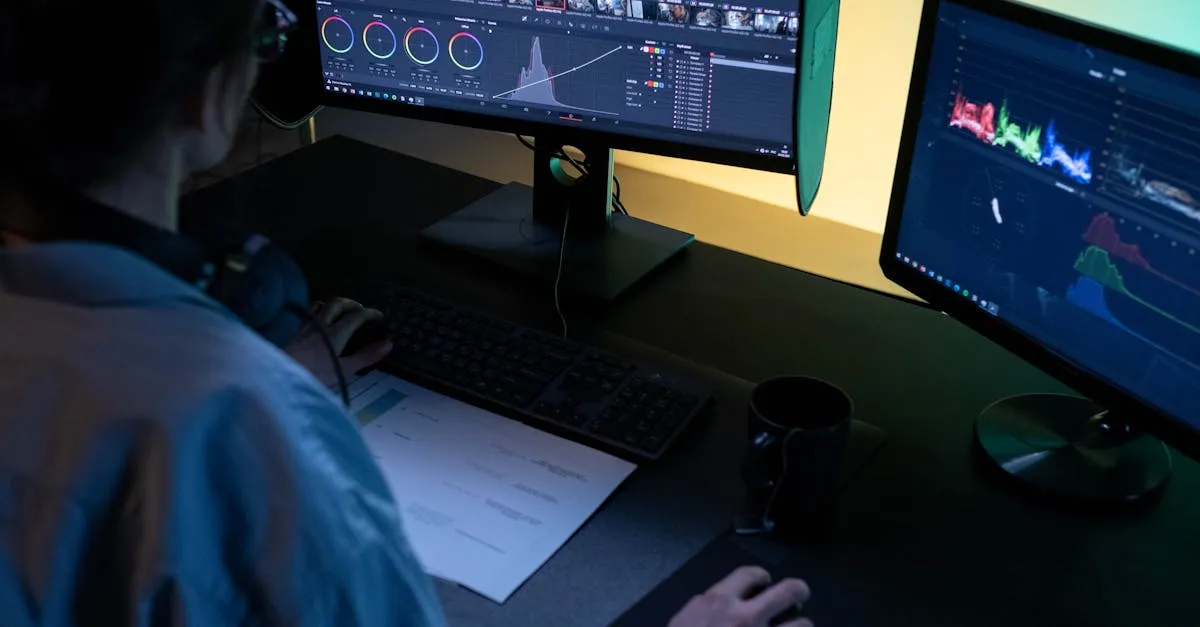
Color Correction
Drone cameras shooting in flat profiles (D-Cinelike, D-Log) capture more dynamic range but look gray and washed out. Bring them back to life:
- White balance — make whites look white
- Exposure — ensure the image isn’t too dark or blown out
- Contrast — add depth between shadows and highlights
- Saturation — enhance colors without making grass radioactive
Color correction makes footage look natural. Save creative grading (teal shadows, orange highlights) for after the basics are dialed in.
Add Music
Music gives your video its soul. Pick a track matching your footage’s vibe — moody mountain shots don’t pair with happy ukulele. Use royalty-free libraries like Artlist or Epidemic Sound.
Drop the music first, then fine-tune your cuts to the beat. When the bass drops or snare hits, transition to a new clip. Duck the drone motor audio so the music shines through.
Export Settings
Keep it simple:
- Codec: H.264 (universally accepted)
- Resolution: 4K (take advantage of your drone sensor)
- Bitrate: 60Mbps (quality vs file size balance)
- Frame rate: Match what you shot in (24/30/60fps)
For web and social media at 1080p, 20Mbps is fine.
Common Beginner Mistakes
- Too many transitions — Star wipes and glitch effects get old in three seconds. Stick to simple cuts or cross dissolves.
- Cutting on every beat — Not every snare hit needs a new clip. Let some shots breathe.
- Leaving clips too long — If a shot doesn’t change or build, it’s too long. 3-5 seconds per clip is a good starting point.
- Over-grading — Pushing saturation too far makes grass neon and skies fake. Subtle adjustments win.
Frequently Asked Questions
What editing software for beginners? CapCut for quick polished results on mobile or desktop. DaVinci Resolve is a powerful free option with professional features, though it has a steeper learning curve.
How should I organize footage before editing? Create separate folders for raw footage, audio, graphics, and exports. Review every clip, delete unwanted shots, then rename the best clips with descriptive names.
What makes speed ramping effective? Speed ramping creates cinematic impact by smoothly transitioning from normal or fast motion to slow motion as you approach a subject. Use smooth easing curves rather than abrupt changes.
Why does drone footage need color correction? Drone cameras often shoot flat profiles like D-Log to capture dynamic range, resulting in washed-out footage. Color correction restores natural whites, proper exposure, and contrast.
What export settings work best? H.264 codec at 4K resolution with 60Mbps bitrate for optimal quality. Match frame rate to what you shot. Reduce to 20Mbps for 1080p web exports.
What common mistakes should beginners avoid? Overusing flashy transitions, cutting on every beat (distracting), leaving clips too long without progression, and pushing saturation so far that footage looks unnatural.
Our free Cinematic Drone Video Course covers shooting AND editing for drone footage from basic cuts to professional color grading.